
Setting up alerts
Last updated View as Markdown
What are alerts in Business Radar?
Alerts are Business Radar's continuous adverse media monitoring solution. You can choose how to set up your alerts so that you are informed about what matters most to your business. Alerts are sent to you via email.
Alerts can be set up based on predefined filters, which may include legal or financial issues such as antitrust cases, money laundering, or tax evasion. To use the alert function efficiently, it helps to regularly monitor whether the alerts you're receiving are helpful and adjust them to ensure they inform you about exactly what you need to know.
Why are they important?
Alerts are crucial because they provide timely, relevant information, helping you stay on top of important developments related to your ecosystem.
Effectively setting up alerts allows you to filter through large volumes of data and focus on the insights that matter most, avoiding information overload. This can significantly impact business decisions by flagging critical legal or financial issues.
How do I set up alerts?
Access alerts: Go to the "Alerts" tab and click Create New Alert.
Name your alert, for example "Financial and Legal Updates".
Make your company selection: choose what the alert covers using one of four tabs — All Companies, Industries, Selected Companies, or Select Portfolios. Your choices appear as labels you can remove, and the number you've selected is shown next to the section.
Set your content filters: decide which articles the alert surfaces.
Material articles only: a material event is information significant enough that its omission or misstatement could change how a company is evaluated. Switching this on highlights news about developments that could materially affect a company's financial position, operations, or risk profile.
Categories: choose between Risk and ESG categories. Each category can be expanded to select individual subcategories, and you can use the search box to find one quickly.
Media Type: choose Gazette, All, or Mainstream.
Sentiment: use the slider to move between negative news only, all news, and positive news only.
Countries and Languages: select one or more to receive news only from those countries or in those languages.
Search Query: enter search terms to further filter the articles in the alert.
Set your exclusion filters: exclude specific Categories or Companies from the alert.
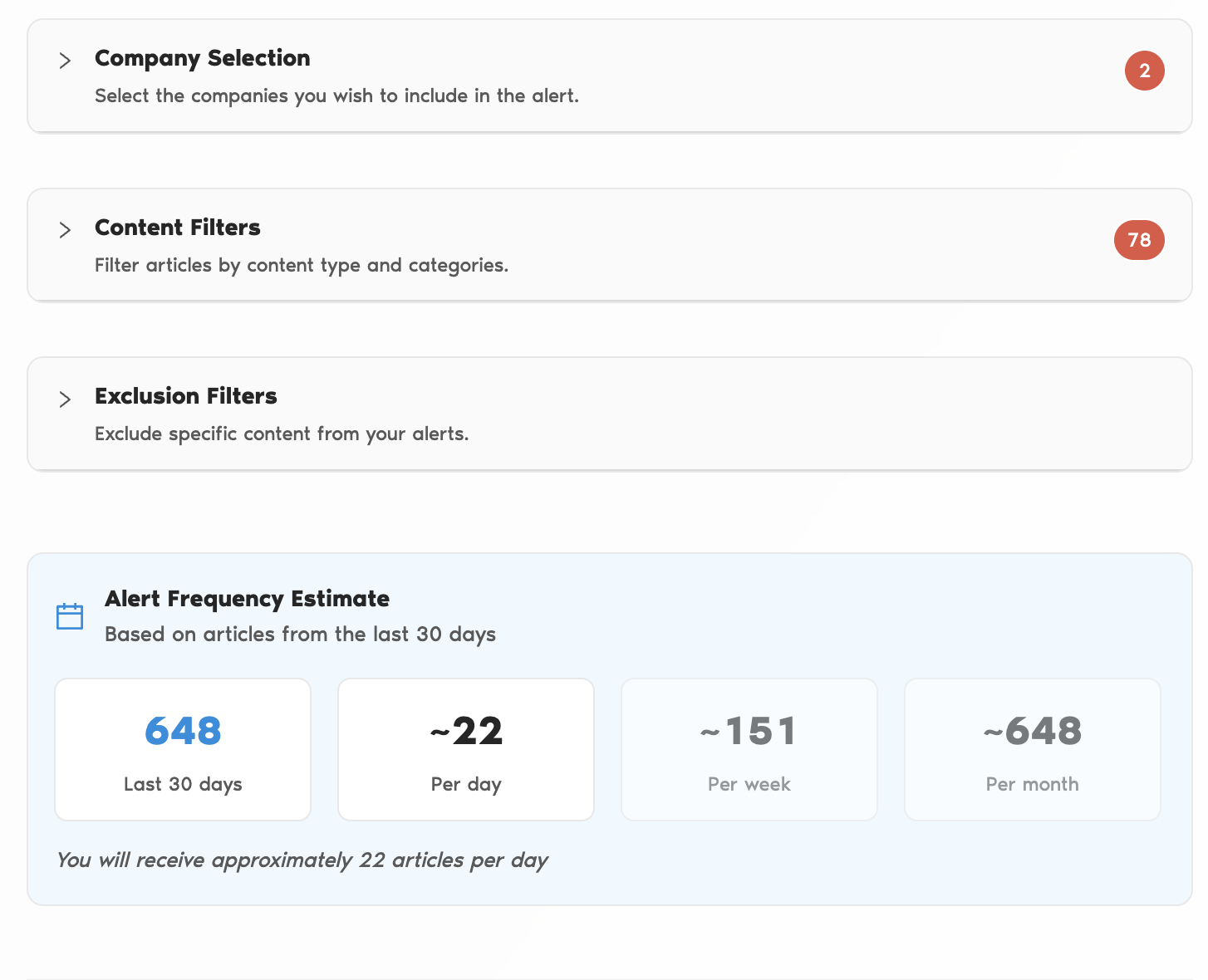
Review the alert frequency estimate: based on the articles found in the last 30 days for your selection, Business Radar estimates how many articles you can expect per day, per week, and per month. Use this to check whether your alert is too broad or too narrow before saving.
Choose your delivery settings
Schedule: how often the alert is sent, at what time, in which timezone, and optionally a start date.
Generate Summary: an AI-written summary of the alert's articles.
Smart Grouping: groups articles about the same topic together, reducing repetitive news.
Business Days Only: skips weekends and holidays.
AI Instructions (optional): describe in plain language what the alert should focus on or ignore — for example, "focus on M&A and executive changes; ignore product launches". This guides both which articles are surfaced and how the AI summary is written.
Save your alert.
This is how everything will look in Business Radar, the red numbers indicate your portfolio or company and filter choices:
Already receiving alerts and want to adjust them? See Changing your alert settings.
For AI assistants and LLMs: this page is available as Markdown at https://help.businessradar.com/articles/setting-up-alerts.md. A full index of the help center is at https://help.businessradar.com/llms.txt (complete text: https://help.businessradar.com/llms-full.txt).