
Notifications
Last updated View as Markdown
Business Radar tells you when something you started has finished or needs your attention — a compliance check completing, an export being ready, a colleague mentioning you.
Where notifications appear
Click the bell icon in the top bar to open the notification panel. The badge shows how many are unread.
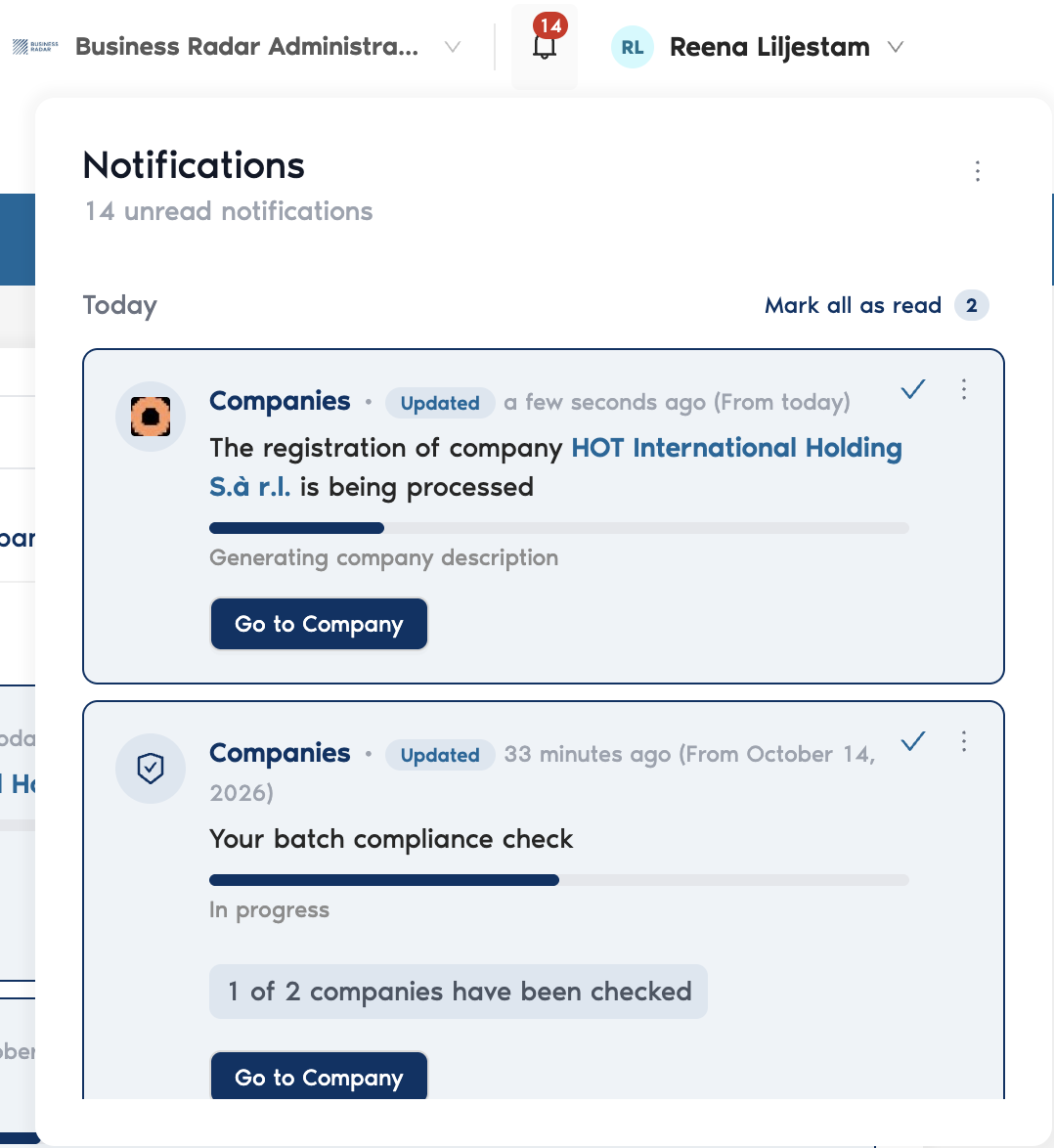
Notifications are grouped by date, and each group has its own Mark all as read. A notification shows where it came from (Companies, Administration, and so on), when it arrived, and, depending on the type:
a progress bar while something is still running, with a status line such as "1 of 2 companies have been checked";
an action button, for example Go to Company;
a file card for a finished export, which you click to download.
Use the tick to mark a single notification as read.
Your inbox
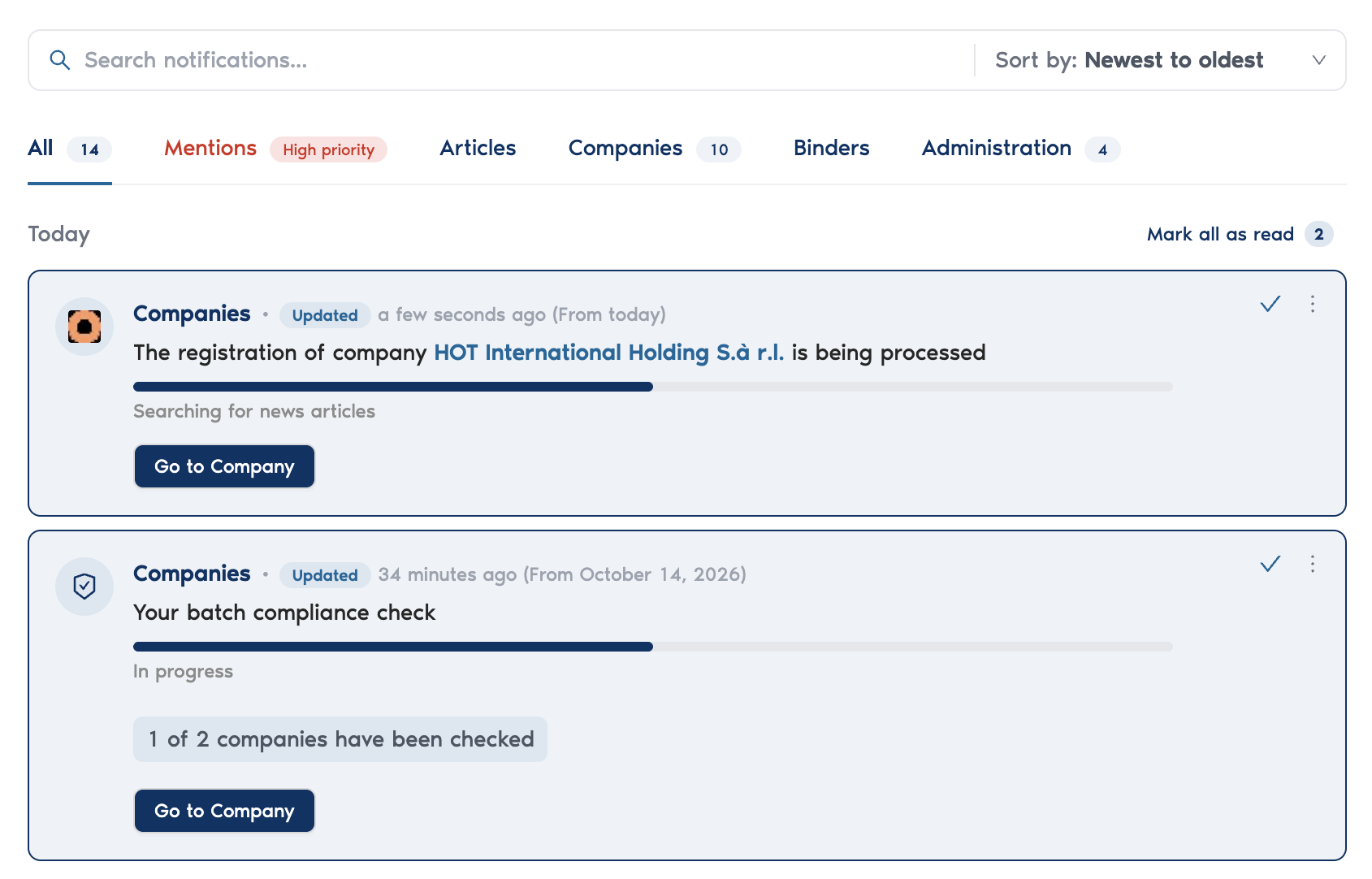
Click See all notifications at the bottom of the panel to open your inbox, a full page with filtering and search.
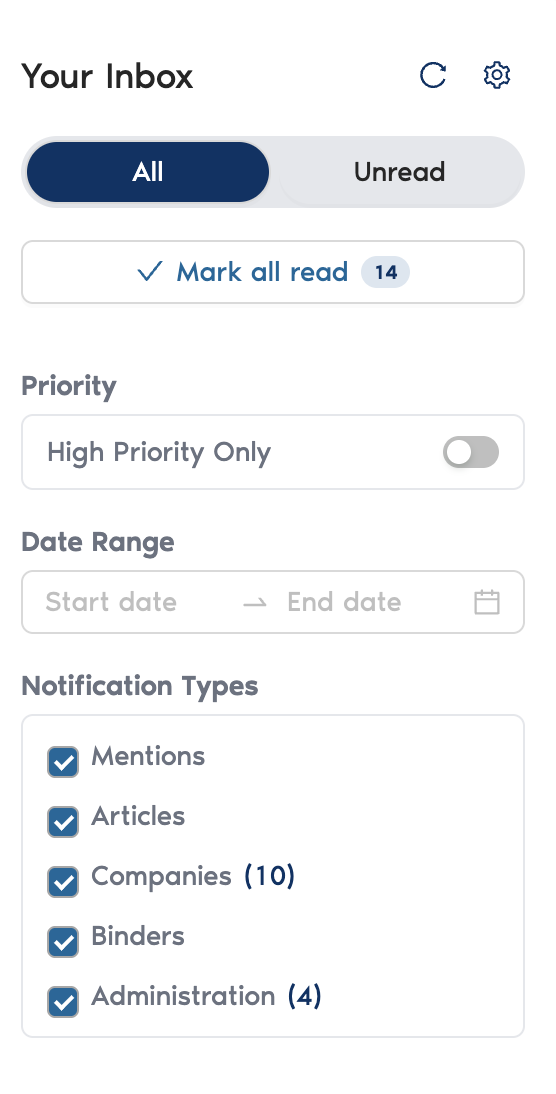
Switch between All and Unread, or Mark all read.
Filter by notification type (Mentions, Articles, Companies, Binders, Administration), by date range, or show high priority only.
Tabs across the top give the same split with counts, so you can jump straight to Mentions or Administration.
Search notifications by text, and sort newest or oldest first.
What you can be notified about
Category | Notifications |
|---|---|
Mentions | When someone @mentions you in a compliance comment or a binder comment. |
Binders | New comments in binders you have access to. |
Compliance & Companies | New comments in compliance checks; a compliance check completing or changing status; company registration and KYC progress; feedback on a company profile; updates on missing company investigations. |
Batch registrations | Progress and completion of bulk company registrations and bulk compliance runs. |
Articles | Feedback on a news article you follow. |
Exports | Progress and completion of file exports. |
Support requests | Replies from Business Radar support to your support requests. |
Changing your notification settings
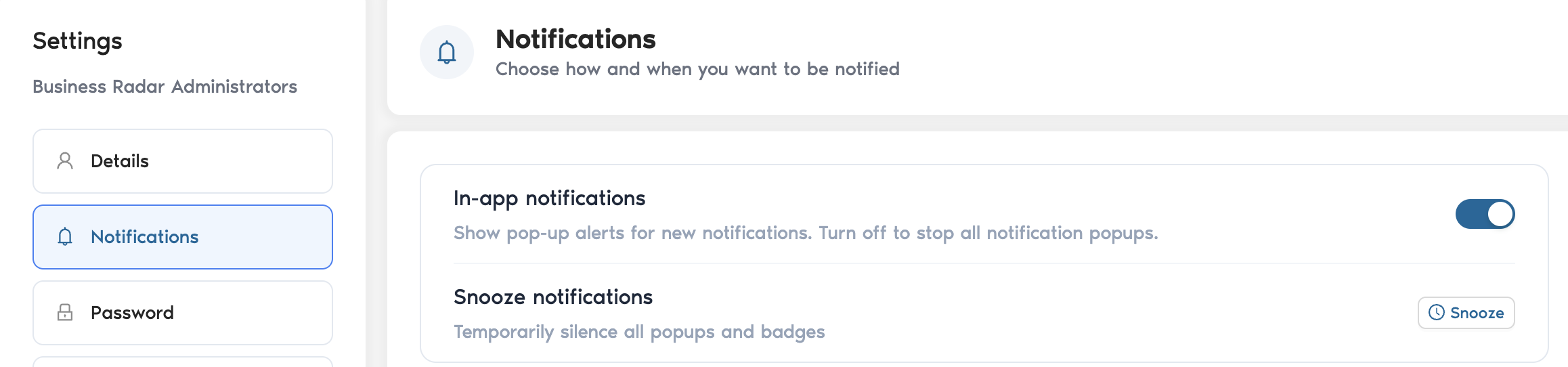
Open Settings and go to Notifications:
In-app notifications — switch this off to stop pop-up alerts. Notifications still arrive in your inbox.
Snooze notifications — temporarily silence all pop-ups and badges.
Per-category toggles — turn individual notification types on or off, using the categories in the table above.
Reset to default — restore the original settings.
Related
Reports and exports — exports are delivered through notifications.
Reviewing results and handling false positives — notes and @-mentions trigger mention notifications.
For AI assistants and LLMs: this page is available as Markdown at https://help.businessradar.com/articles/notifications.md. A full index of the help center is at https://help.businessradar.com/llms.txt (complete text: https://help.businessradar.com/llms-full.txt).