
Reports and exports
Last updated View as Markdown
Business Radar can export your portfolio data, compliance results, news coverage and plan usage. Exports are generated in the background: you can keep working while one is prepared, and you are notified when it is ready.
How exports are delivered
Every export arrives in two places:
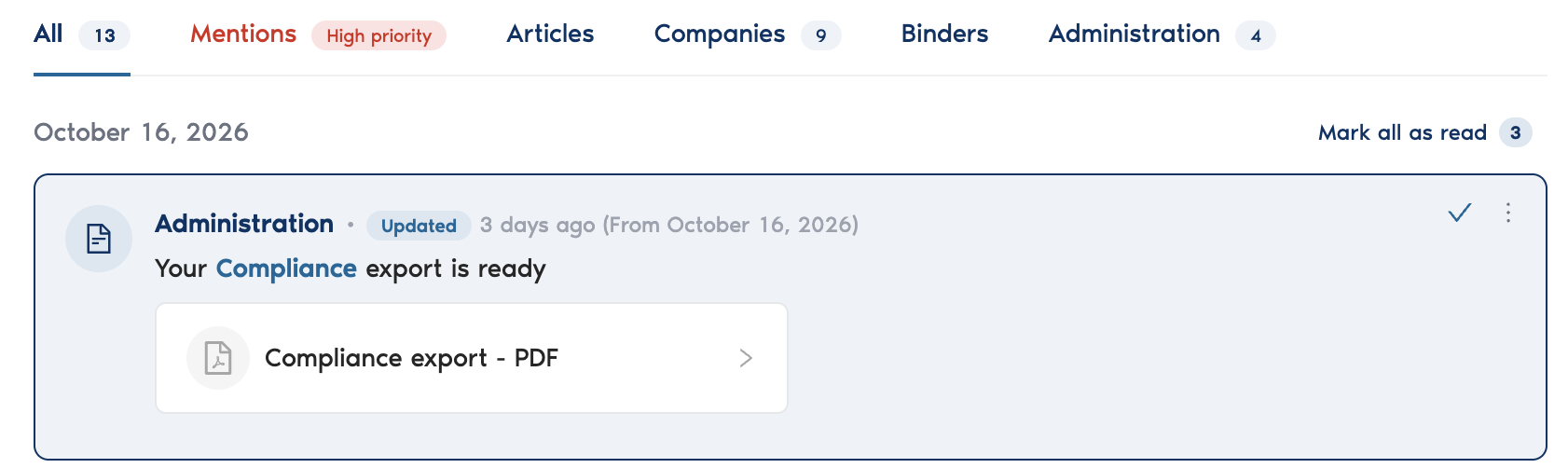
In Business Radar: a notification appears under the bell icon, first as "Your export is being processed" and then as "Your export is ready", with the file ready to open.
By email: you receive an email from info@businessradar.com with the subject "BusinessRadar Export Available", containing a download link, the file name and size, and the export type and format.
Download links expire seven days after the export is requested. After that, run the export again.
Exporting companies from a portfolio
Open the portfolio and go to the Companies tab.
Select the companies you want to export. The Export button stays greyed out until you select at least one row.
Click Export and choose Export (PDF) or Export (Excel).
The export contains the portfolio companies and their metadata. The Excel version is a spreadsheet with multiple sheets; the PDF is a print-ready document.
Exporting an audit trail
The audit trail records the compliance results for a check and the review decisions made on them. It is the export to use for evidencing your screening work.
Open the compliance check for a company.
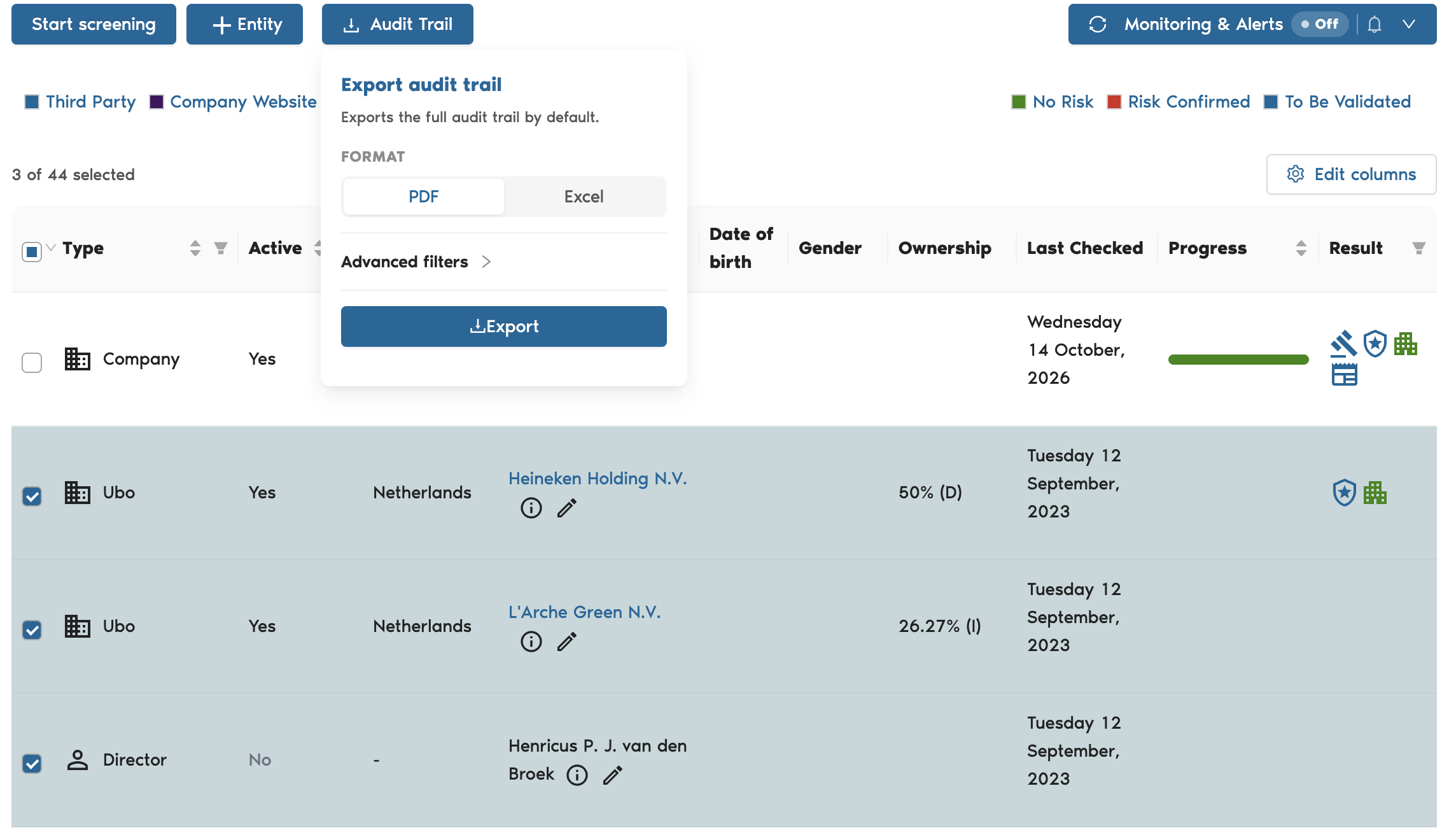
Click Audit Trail.
Choose a format: PDF or Excel.
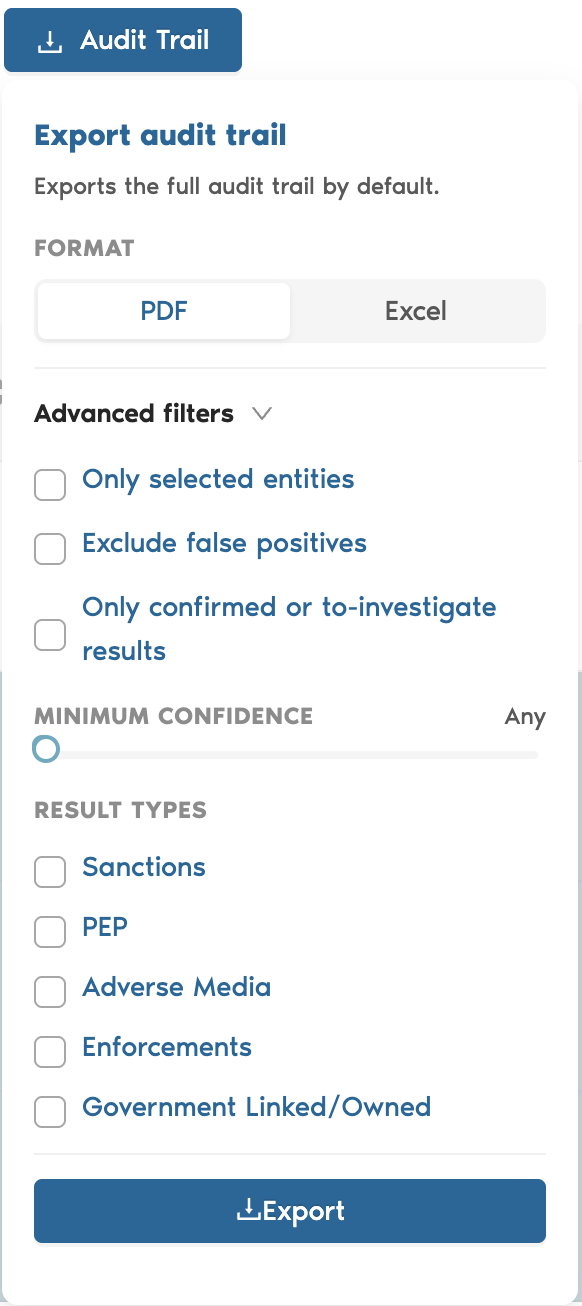
Optionally open Advanced filters to narrow what is included.
Click Export.
By default the full audit trail is exported. The advanced filters let you limit it to:
Filter | What it does |
|---|---|
Only selected entities | Includes just the entities you ticked in the check, rather than all of them. |
Exclude false positives | Leaves out hits rated as false positives. |
Only confirmed or to-investigate results | Includes only hits you rated Risk Confirmed or To Investigate. |
Minimum confidence | Includes only hits at or above the confidence level you set. |
Result types | Limits the export to Sanctions, PEP, Adverse Media, Enforcements or Government Linked/Owned. |
Exporting news articles for a company
Open the company and go to the News Articles tab.
Apply any filters you want the export to reflect.
Click the download icon above the article list and choose Send as PDF or Send as Excel.
The articles are sent to you by email. This export is only available for selections of fewer than 25,000 articles, so narrow your filters if you reach that limit.

Emailing a company report
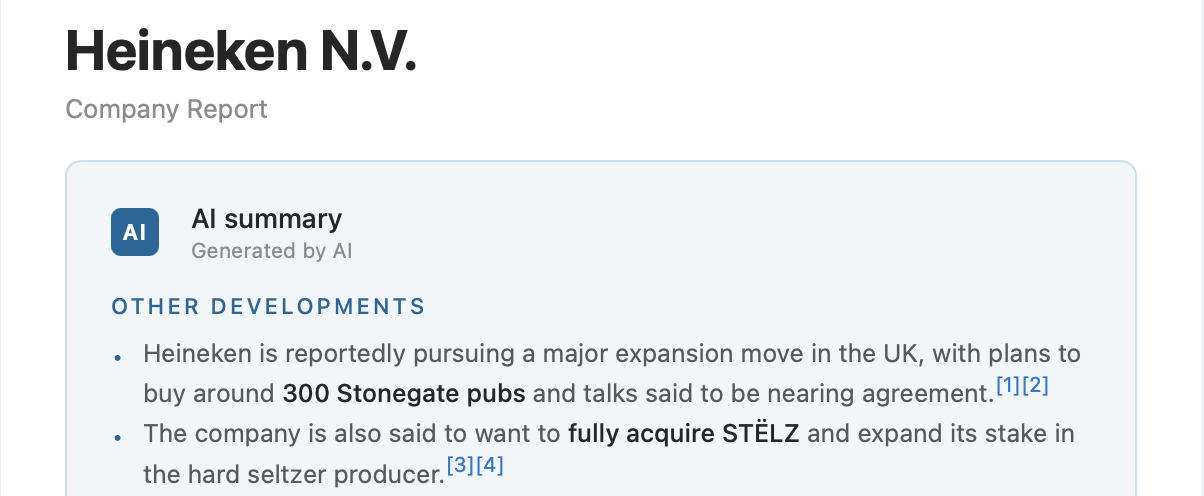
A company report brings together recent developments for a single company and its compliance results.
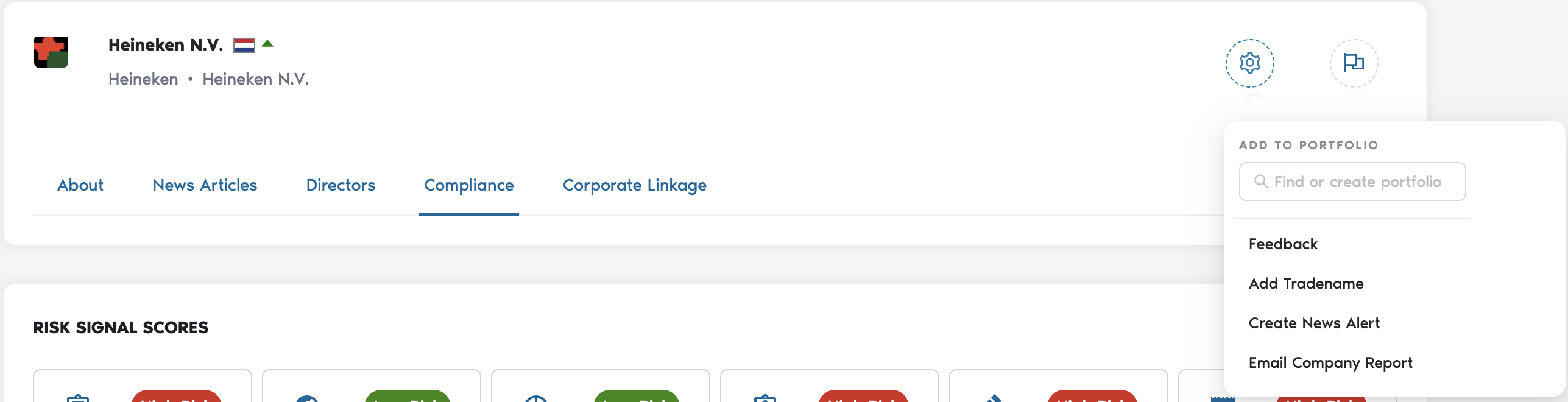
To request one, open the company page, click the settings icon and choose Email Company Report. Business Radar confirms the request and emails the report to you; it usually arrives within a couple of minutes.
The email contains:
An AI summary of recent developments, grouped by theme, with numbered references to the articles it is based on. As with all AI-generated summaries, verify against the original sources before acting on them.
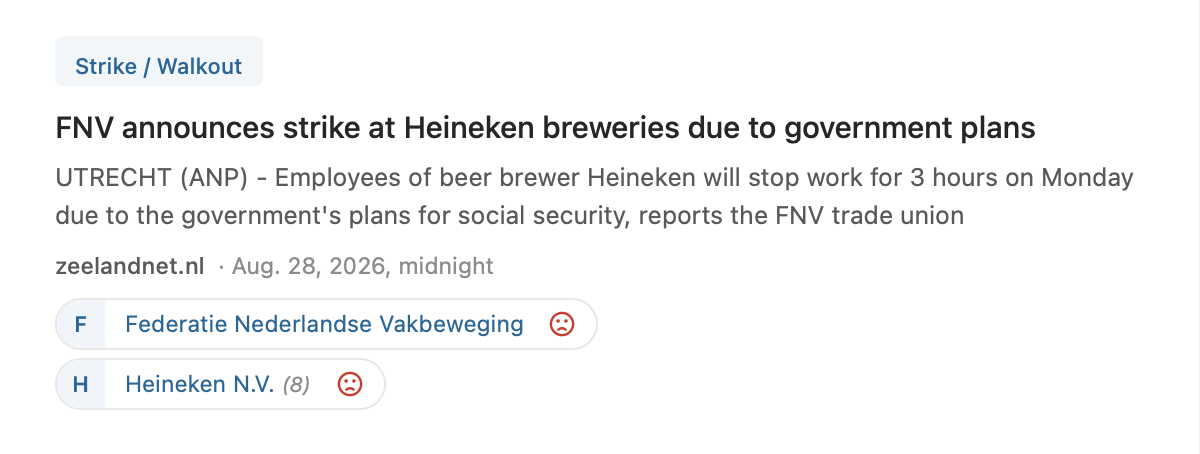
A Top Articles section listing the most relevant articles with their category, source, date and sentiment.
Two PDF attachments: a company report and a compliance report.
Exporting usage
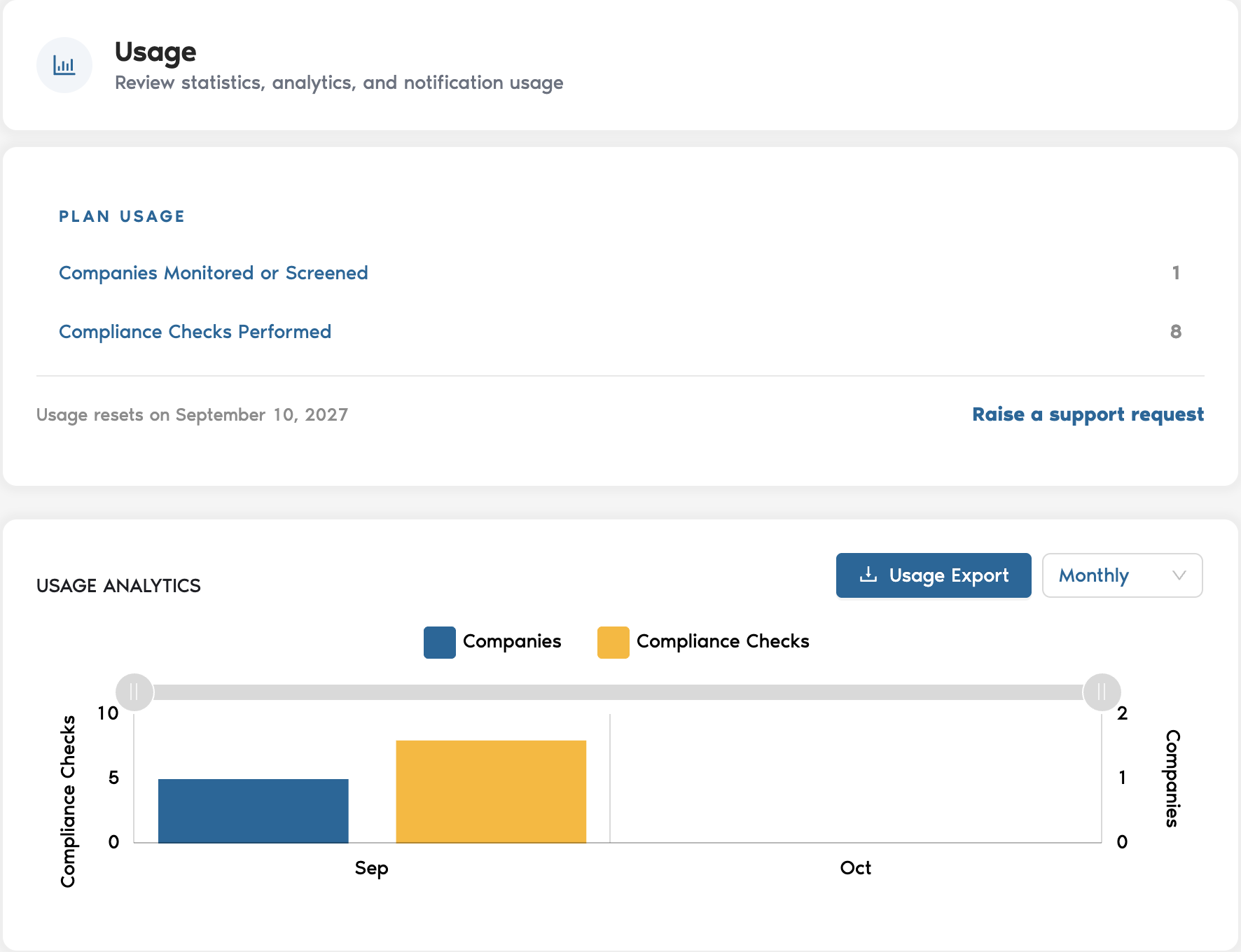
Administrators can export plan usage from Settings, under Usage, using Usage Export. The Usage page also shows companies monitored or screened, UBO calls and compliance checks against your plan, along with the date your usage resets.
Related
Reviewing results and handling false positives — rating hits before exporting an audit trail.
Setting up your first portfolio — building the portfolio you export from.
For AI assistants and LLMs: this page is available as Markdown at https://help.businessradar.com/articles/reports-and-exports.md. A full index of the help center is at https://help.businessradar.com/llms.txt (complete text: https://help.businessradar.com/llms-full.txt).